GTA 6 not launching, PS5 error, possible reason, solutions, and more
If GTA 6 (Grand Theft Auto VI) refuses to open on your PS5, you're not alone in running into launch-day trouble.
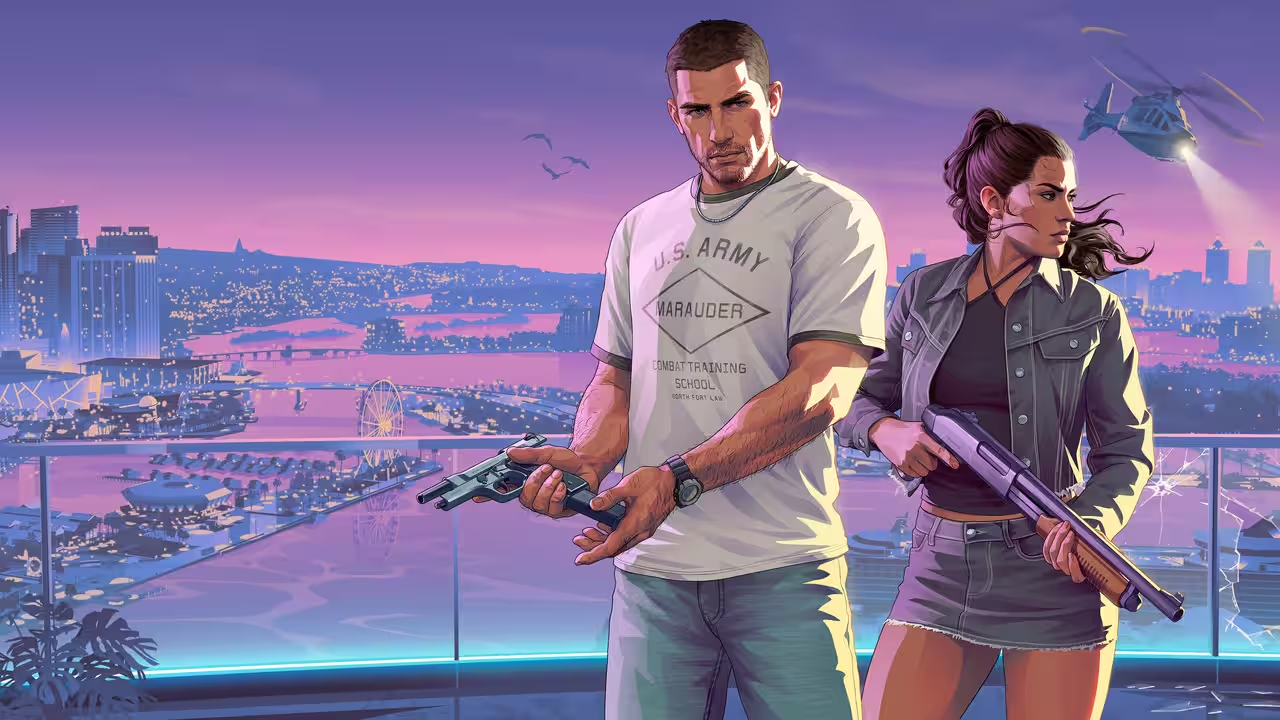
If GTA 6 (Grand Theft Auto VI) refuses to open on your PS5, you're not alone in running into launch-day trouble. Most problems come down to a handful of causes, and most can be fixed in minutes.There are a few things that you can check and do to resolve the PS5 errors that you might encounter while you try to open GTA 6. In the section below, we take a detailed look at what to check, solutions, and more.Why GTA 6 might not startListed below are some of the key reasons why GTA 6 might not be starting on your PS5:It isn't unlocked yet. GTA 6 unlocks at midnight local time on November 19, 2026, so a padlock before then is normal.The preload isn't finished. The game needs up to 212 GB, and it won't unlock if it's still downloading.The wrong storage. PS5 games must run from internal storage or a compatible M.2 SSD, and a standard external USB drive may only store the files without letting you play.Outdated software. Sony pushed a last-minute firmware update, version 26.07-14.23.00, ahead of the November 19 launch.Corrupted files or server trouble. A bad install or a PlayStation Network outage can also block the game.Step-by-step fixesConfirm the unlock time and your clock. Check your region's unlock time and make sure your console's date and time are correct. Set them to automatic.Finish the install. Open Downloads/Uploads and make sure GTA 6 shows as complete. Install any game update it asks for.Move it off USB storage. If GTA 6 is on an external USB drive, move it to the PS5's internal storage before launching.Restart and update. Close the game with Options > Close Game, restart the PS5, and install any available game or system updates. The system update is under Settings > System > System Software.Rebuild the database. If problems continue, start in Safe Mode and use Clear Cache and Rebuild Database.Reinstall. For persistent launch failures, PlayStation recommends deleting and re-downloading the game.Common error codesCE-100095-5: The application didn't start correctly. Make sure the game is fully downloaded, past its unlock time, and installed on compatible storage.CE-100028-1: There isn't enough space on your SSD.NW-102636-8: Turn the router off for more than five minutes and restart it, or move the PS5 closer on Wi-Fi.Network and server codes: NW-102216-2, NW-102417-5, and CE-105799-1 point to network trouble. If PSN has issues, the fix is to wait a few minutes and try again.If nothing worksCheck PlayStation's service status first, since a server problem can't be fixed on your end. Then contact PlayStation support and have your error code ready. Jot down any message you see so you don't repeat the same steps.To conclude, you can check the unlock time for your region, finish the install, keep the game on internal storage, update your software, and restore your licenses. Reinstalling is the last resort.Get the latest Sports News and Live updates. Download the TOI app.
Topics in this story
Gathered from external sources. Rights to this text belong to whoever originally published it.